---
title: How to Submit a Supply or Equipment Order
description: This guide explains how to submit, track, and close Supply Orders in the company’s digital Pipefy workflow. It replaces all paper or email-based supply requests.
---
[Skip to content](https://www.dscsolutionsfm.co/sops/supply-and-equipment-orders-standard-operating-procedure-sop#main-content)
English
Show submenu for translations

Open main navigation
Close main navigation
- English
Show submenu for translations
- Contact us
Contact us
Search the DSC Knowledge Base
- There are no suggestions because the search field is empty.
1. [DSC Solutions Group Standard Operating Procedures](https://www.dscsolutionsfm.co/sops?hsLang=en)
2. [Operations – Janitorial](https://www.dscsolutionsfm.co/sops/operations-janitorial?hsLang=en)
3. [Order Placement](https://www.dscsolutionsfm.co/sops/operations-janitorial?hsLang=en#order-placement)
# How to Submit a Supply or Equipment Order
## Purpose This guide explains how supervisors submit supply and equipment orders through the Supervisor Portal. All orders must follow this process to ensure accurate delivery, billing, and inventory control.
#### **Step 1: Access the Supervisor Portal**
You can reach the portal in two ways:
• Scan the QR code
• Click the link directly: [https://app.pipefy.com/organizations/327776/interfaces/100925da-81cf-4e3d-aa54-dbf01311f802/pages/be052a4f-22d1-4a5c-8ae9-0b5954b2a484](https://app.pipefy.com/organizations/327776/interfaces/100925da-81cf-4e3d-aa54-dbf01311f802/pages/be052a4f-22d1-4a5c-8ae9-0b5954b2a484)
• Save the link/QR code to your phone or print it for easy access
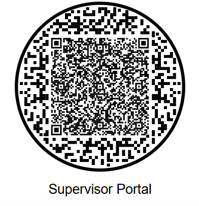
Once you are in the supervisor portal, scroll down to **Inventory Management & Supply Ordering** and tap it.
#### **Step 2: Complete the Basic Order Details**
##### **Your Name**
Enter your full name.
##### **Customer / Location**
Select the customer or location where the supplies will be delivered.
• Each customer has a designated ship to address already preloaded.
• If you need the order delivered to a different address, add that in the **Notes** section.
##### **Requested Delivery Date**
This is extremely important. This is the date you want:
• The supplies delivered to your site
**or**
• The supplies available for pickup at the warehouse
Choose accurately based on your operational needs.
##### **Order Priority Level**
Select how urgent the order is.
Use this only when supplies are truly needed quickly so we can prioritize properly.
#### **Step 3: Add Items to the Order**
Tap **Select Item**.
You can:
• Scroll through the list
• Or type the item name in the search bar
Example: selecting **X-Effect**
You will see:
• Item number
• Category
• Manufacturer
• Unit of measurement (ex. CS = case)
• Cost per unit
Once selected, fill in:
##### **Quantity**
Enter the number of units or cases you are ordering.
##### **Billable?**
Choose **Yes** or **No**.
• Most chemicals are **non-billable**.
• Items like toilet paper or consumables for clients **are billable** and will be invoiced by the billing team.
The form allows **up to 8 items**.
If you need more than 8 items:
• Submit a second order, **or**
• Use the **Non-Catalog Items** field and note that you ran out of space.
#### **Step 4: Enter Total Order Cost**
Add up the cost of all items.
Example:
10 cases of X-Effect at $46 per case
10 × 46 = $460
Enter the total amount in the **Cost** field.
#### **Step 5: Non-Catalog Items**
Use this section when:
• You run out of item slots
• You need to request an item **not on the approved list**
All non-catalog items are reviewed and must be approved before ordering.
You may only select pre-approved items in the main item selector.
#### **Step 6: Select the Division**
Choose which division the client belongs to:
• DSC Solutions
• Select Building Services
• Guaranteed Maintenance Service
• Clean Energy
• Etc.
This must be accurate for accounting and routing.
#### **Step 7: Add Notes or Special Instructions**
Examples:
• Alternate delivery address
• Special timing
• Instructions for the warehouse team
• Clarification on quantity or item usage
#### **Step 8: Enter Your Email Address**
This is mandatory.
All order updates and notifications will be sent to this email.
#### **Step 9: Submit the Order**
Tap **Create Card** to submit.
You will receive confirmation and updates as the order moves through the workflow.
---
#### **Helpful Tips**
- Save the public form link as a home-screen shortcut on your phone.
- Use “Need-By Date” responsibly — rush requests should be the exception, not the rule.
- Review your open requests weekly to confirm receipt and close out.
- [Operations – Janitorial](https://www.dscsolutionsfm.co/sops/operations-janitorial?hsLang=en#main-content)
- [Customer Onboarding](https://www.dscsolutionsfm.co/sops/operations-janitorial?hsLang=en#customer-onboarding)
- [Order Placement](https://www.dscsolutionsfm.co/sops/operations-janitorial?hsLang=en#order-placement)
[](http://dscsolutionsfm.com)
[mailto:email@email.com](mailto:email@email.com)
Copyright © 2025, dscsolutionsfm.us
```json
{
"@context" : "https://schema.org",
"@type" : "VideoObject",
"contentUrl" : "https://243933092.fs1.hubspotusercontent-na2.net/hubfs/243933092/DSC%20Solutions%20-%20Pipefy%20_%20The%20operations%20excellence%20platform%20-%2017%20November%202025%20(1).mp4",
"dateModified" : "2025-11-17T21:10:01.740Z",
"duration" : "PT5M",
"height" : 884,
"name" : "DSC Solutions - Pipefy _ The operations excellence platform - 17 November 2025 (1)",
"thumbnailUrl" : "https://243933092.fs1.hubspotusercontent-na2.net/hubfs/243933092/DSC%20Solutions%20-%20Pipefy%20_%20The%20operations%20excellence%20platform%20-%2017%20November%202025%20(1).mp4/medium.jpg",
"uploadDate" : "2025-11-17T21:09:52.532Z",
"width" : 1920
}
```